twgps
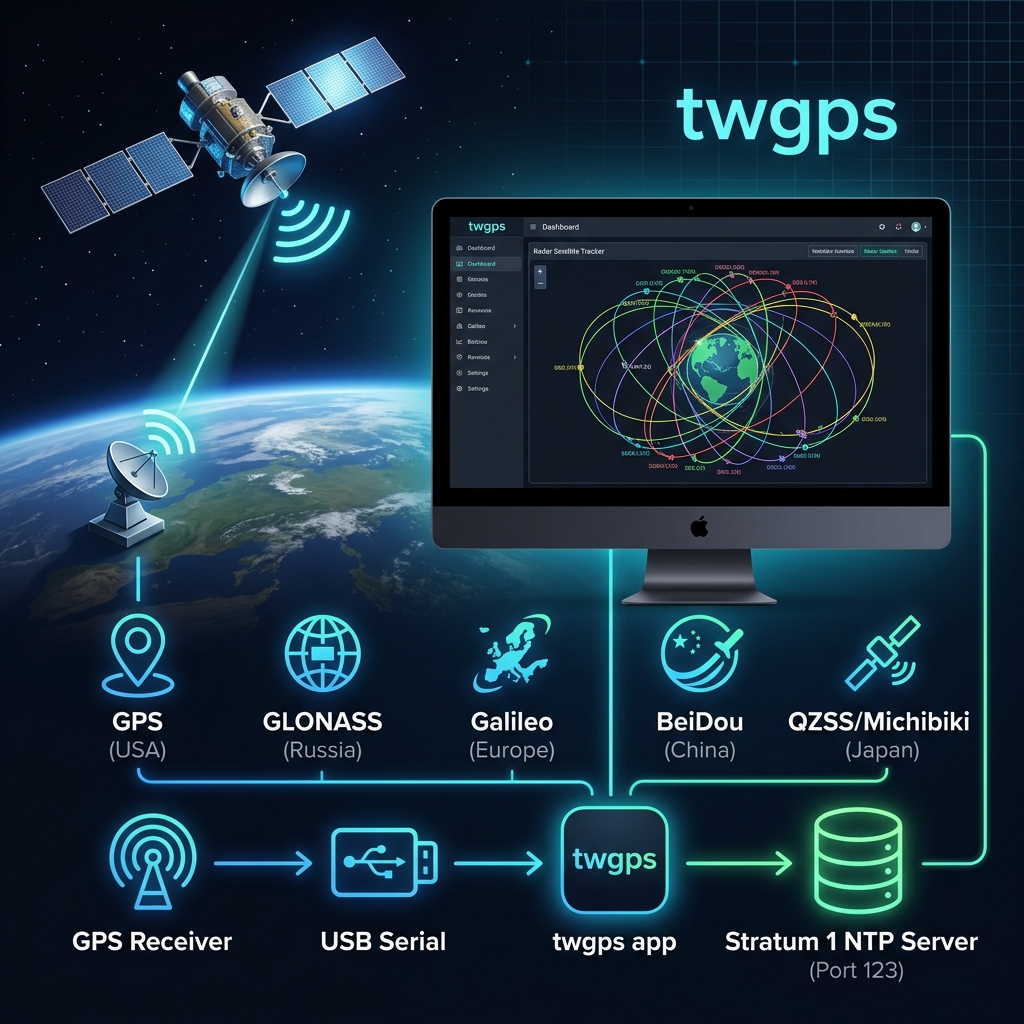
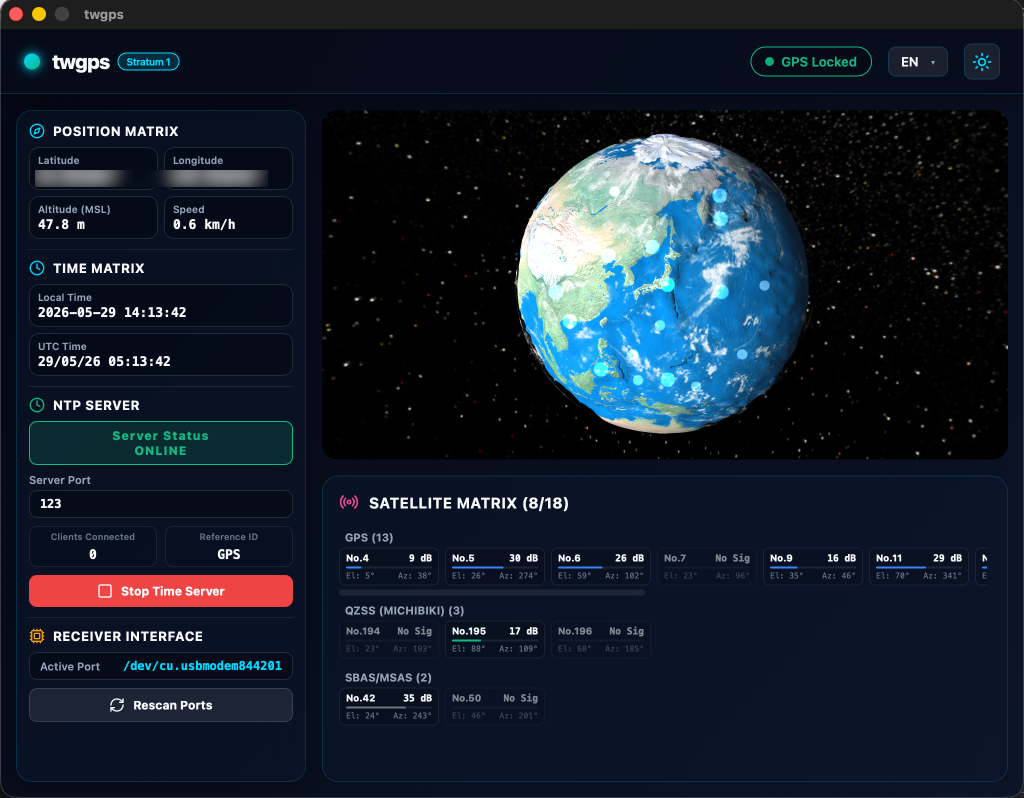
twgps is a lightweight, cross-platform desktop application that turns your computer into a Stratum 1 NTP server using a connected USB/Serial GPS receiver. It automatically detects your GPS receiver, visualizes satellite constellations and signal strengths, and serves high-precision NTP time.
Built with Wails (Go + Svelte).
Required Hardware
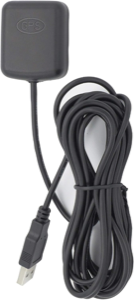
To use this software, you need a compatible USB NMEA GPS receiver.
Verified Hardware:
- GPS Receiver DOCTORADIO GR7-10HZ (USB NMEA Receiver)
Features
- Automatic GPS Receiver Detection: Automatically scans all serial/USB ports at common baud rates (115200 and 9600 bps) to locate your GPS receiver and start parsing NMEA sentences.
- Satellite Constellation Visualization: Tracks and displays active satellites, elevation, azimuth, and Signal-to-Noise Ratio (SNR) for:
- GPS (USA)
- GLONASS (Russia)
- Galileo (EU)
- BeiDou (China)
- QZSS / Michibiki (Japan)
- SBAS / MSAS (Augmentation systems)
- Built-in Stratum 1 NTP Server:
- Serves high-precision time synced with GPS satellite clocks.
- Defaults to the standard NTP port
123(or customizable ports). - Flags Stratum 1 with the
"GPS "reference identifier when active. - Automatically falls back to system time if the GPS receiver loses its 3D fix.
- Modern User Interface: A responsive dashboard with real-time updates and multi-language support (English and Japanese).
Installation
You can download pre-built binaries from the GitHub Releases page.
- Windows: Download the
.ziparchive, extract it, and runtwgps.exe. - Linux: Download the
.tar.gzarchive, extract it, and run the binary. See Linux Setup below for important permission and graphics settings. - macOS: Download the
.appor disk image and copy it to your Applications folder.
Operation Guide
- Connect your GPS Receiver: Plug your USB or serial NMEA-compatible GPS receiver into your computer.
- Start twgps: Launch the application.
- Auto-Scan:
twgpswill scan your serial ports in the background. Once a valid NMEA stream is detected, the status changes to green, and satellite details will begin updating. - Acquire Fix: Wait for the GPS receiver to obtain a 3D fix. The dashboard will display your latitude, longitude, altitude, and current UTC time.
- Start the NTP Server:
- Enter the desired port (default is
123). - Click the Start NTP button.
- Note: Using port
123on Linux or macOS requires elevated capabilities or root privileges for binding. See Linux Setup below.
- Enter the desired port (default is
Linux Setup
1. Serial Port Permissions (Permission Denied)
To access USB serial adapters (e.g., /dev/ttyACM0 or /dev/ttyUSB0) without root access, you must add your user to the appropriate dialout group:
- Ubuntu / Debian / Fedora:
sudo usermod -a -G dialout $USER - Arch Linux:
sudo usermod -a -G uucp $USER
[!IMPORTANT] You must log out and log back in (or restart your system) for the group changes to take effect.
Why you shouldn’t use sudo to run twgps
If you attempt to run twgps with sudo (e.g., sudo ./twgps), it will fail to start and crash with panic: failed to init GTK. This happens because GUI applications running as root cannot connect to your user’s desktop display server (X11 or Wayland). Always grant your user serial port permissions instead.
2. Standard NTP Port 123 Binding
Binding to privileged ports (< 1024) like UDP 123 is restricted to root on Linux. Instead of running the entire app with sudo, grant the binary net-bind privileges:
sudo setcap 'cap_net_bind_service=+ep' ./twgps
3. Blank Screen / Rendering Issues on Older GPUs
If you experience a blank (white) window or crashes on launch, WebKit2GTK may be struggling with your graphics driver. You can bypass this by setting environment variables to disable hardware compositing or DMABUF rendering:
# Disable DMABUF rendering (Recommended for older GPUs/Intel/Mesa)
WEBKIT_DISABLE_DMABUF_RENDERER=1 ./twgps

# Disable hardware acceleration entirely if issues persist
WEBKIT_DISABLE_COMPOSITING_MODE=1 ./twgps
Local Build Instructions
Prerequisites
To build twgps from source, ensure you have the following installed:
- Go: Version 1.26 or higher
- Node.js: Version 20 or higher
- Wails CLI: Version 2
go install github.com/wailsapp/wails/v2/cmd/wails@latest - Mise (Optional task runner)
Build Steps
- Clone the repository:
git clone https://github.com/twsnmp/twgps.git cd twgps - Development Mode:
Launch the app in live-rebuilding development mode:
wails dev # Or using mise: mise run dev - Production Build:
Compile the production bundle for your current OS:
wails build
# Or using mise:
mise run build
License
This project is licensed under the Apache License, Version 2.0. See the LICENSE file for details.